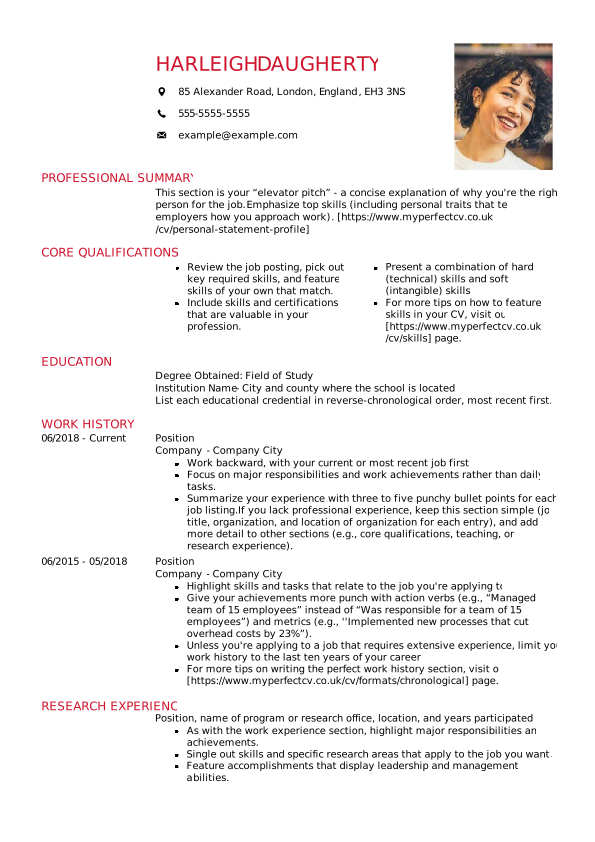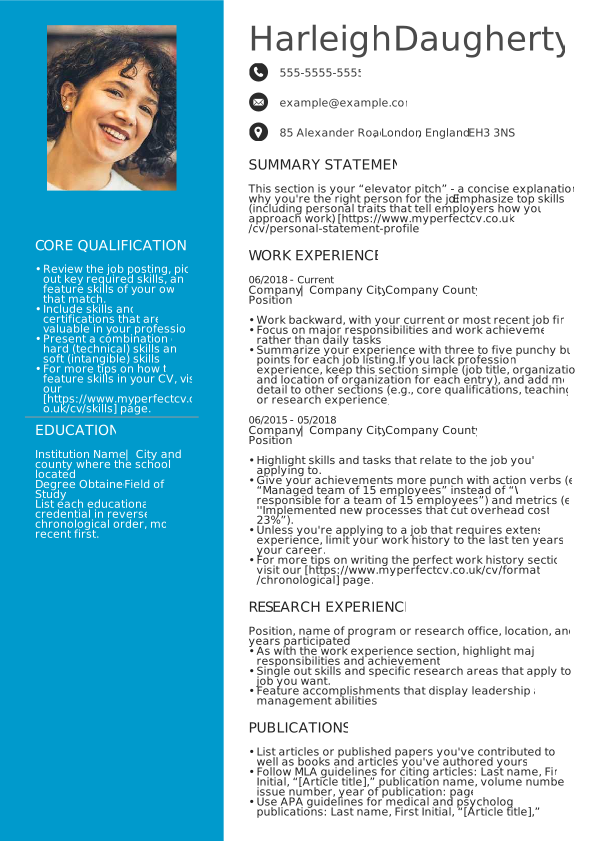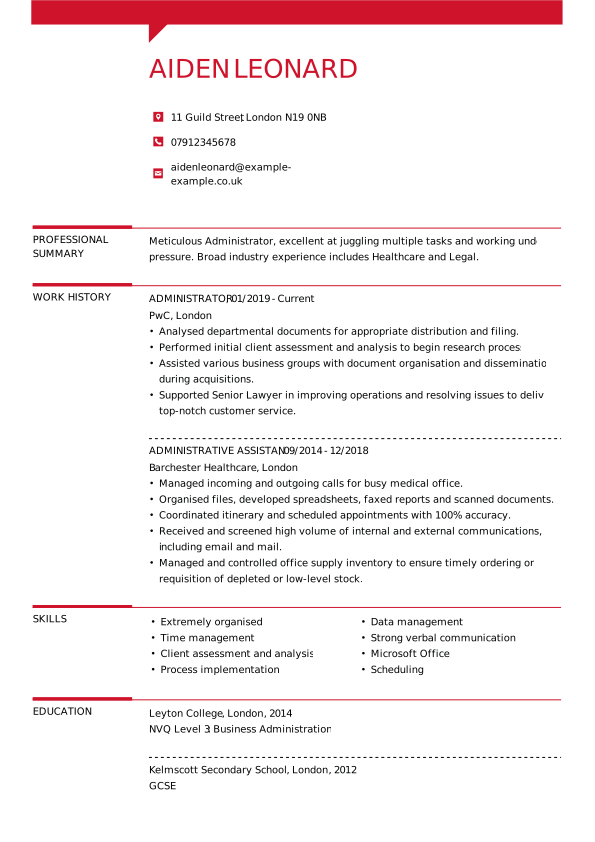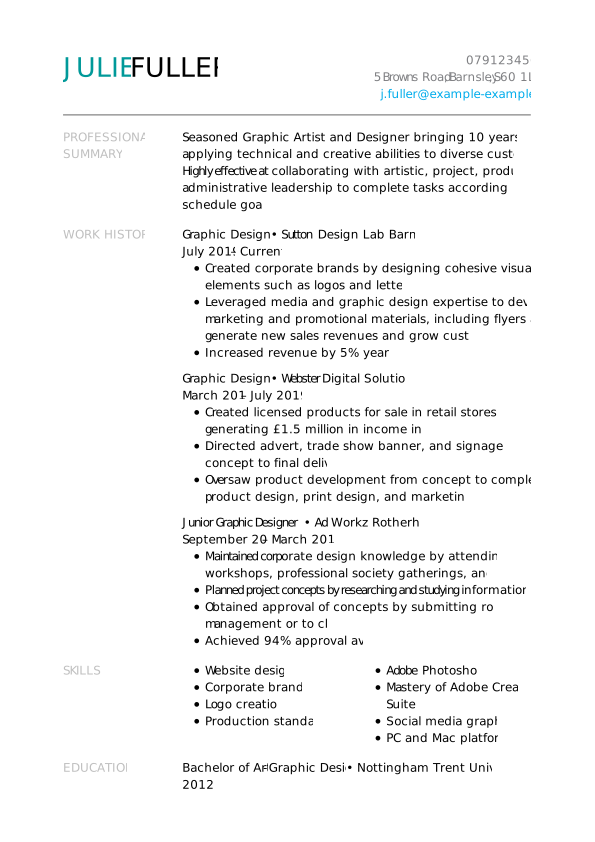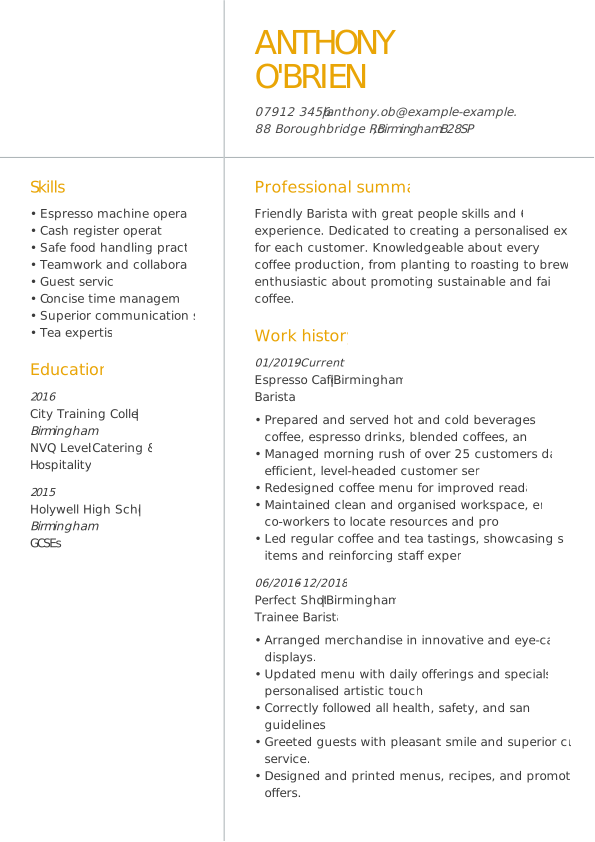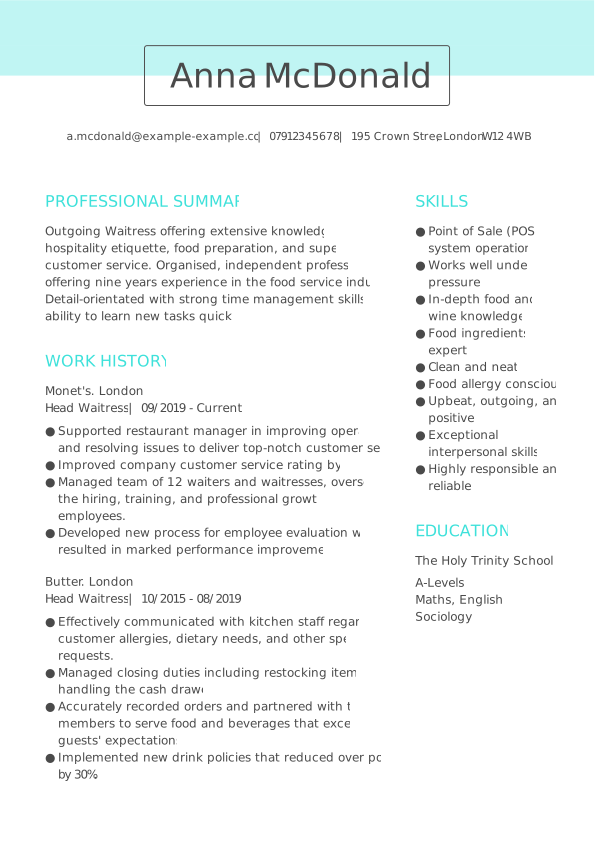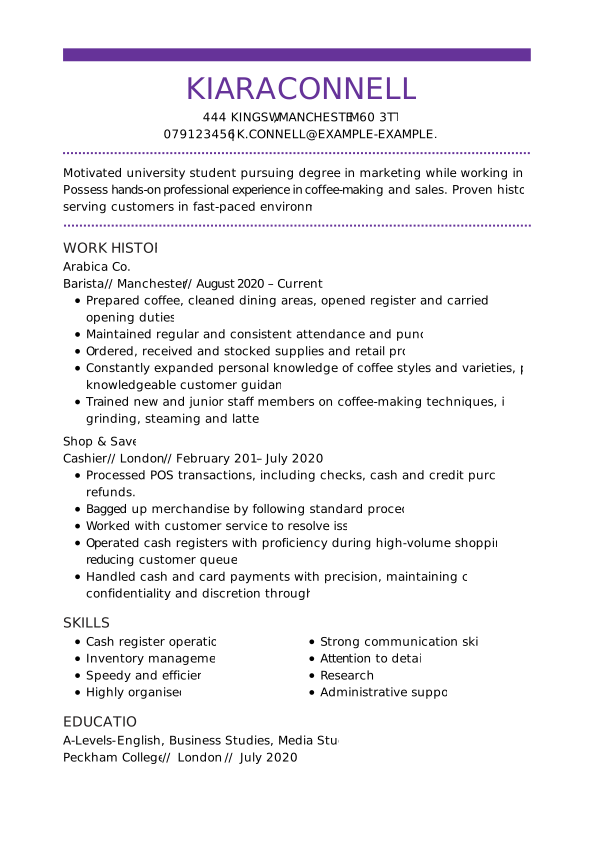

These ready-made CV templates for Google Docs are designed to be easy to edit, fully compatible with G-Docs, and ideal for job seekers in a wide range of industries. Whether you’re applying for your first job or your next big role, our CV templates help you stand out quickly and easily.

Why use our Google Docs CV templates?

  • 100% free to download and use
  • Fully editable in Google Docs (no extra software needed)
  • Clean, modern designs built for clarity and impact
  • Optimised for applicant tracking systems (ATS)
  • Suitable for any industry or career level

Free creative CV template

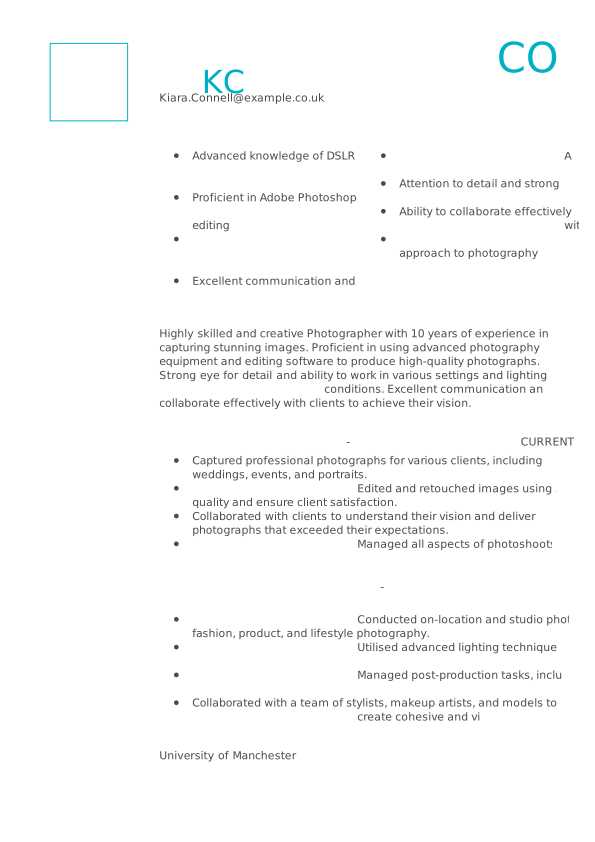
Want to stand out with a unique and eye-catching CV? Start building your job application now. Our free CV template is designed to help you showcase your skills, experience, and personality in a way that grabs attention. Create your perfect CV today and make a lasting impression on recruiters.

Edith Wallis

3 Kingly Court
Sheffield S1 YU7
07912 345678
wallis.e@example-example.co.uk

PROFESSIONAL SUMMARY

Photographer with 10 years of experience capturing visually stunning images across a range of genres, including events, portraits, and commercial projects. Skilled in using advanced photographic equipment, editing software, and techniques to deliver high-quality work. Strong eye for detail, composition, and lighting.

WORK HISTORY

Photographer (March 2022 – Current)
Framie Studio, Manchester

  • Captured professional images, including weddings, events, and portraits, for a variety of clients.
  • Used Adobe Photoshop and Lightroom to edit and retouch images to ensure the highest quality output.
  • Worked with clients to understand their vision and bring it to life through photography.
  • Managed all aspects of photoshoots, including equipment setup, lighting, and composition.

Photographer (January 2015 – February 2022)
Capturing Memories, Manchester

  • Conducted on-location and studio photoshoots for fashion, product, and lifestyle clients.
  • Applied advanced lighting techniques to create visually stunning images.
  • Performed post-production tasks including editing, retouching, and colour correction.
  • Worked as part of a team with stylists, makeup artists, and models to create cohesive and striking images.

SKILLS

  • Proficiency in Adobe Photoshop, Lightroom, and other editing software
  • Knowledge of DSLR and mirrorless cameras
  • Strong understanding of composition, lighting, and colour theory
  • Ability to work creatively and collaboratively in a variety of environments
  • Excellent communication and client interaction skills
  • Good time management and project organisation skills
  • Adaptable to different creative styles and subjects

EDUCATION

Bachelor of Arts: Visual Arts (2015)

University of Manchester
Free Google Docs CV templates 

Start building your CV with our free CV templates. Perfect for first-time job seekers and those updating their CVs, this Google Docs CV design ensures your information is clear and professional. Customise it to highlight your skills, qualifications, and experience, ensuring you stand out to potential employers. 

Google Docs CV templates for specific jobs

Are you looking to create a new Google Docs CV? Browse our expertly designed CV templates for Google Docs, which are tailored for various industries. Use these templates as a foundation for your new CV, highlighting your skills and experience and giving you a competitive edge in the job market.

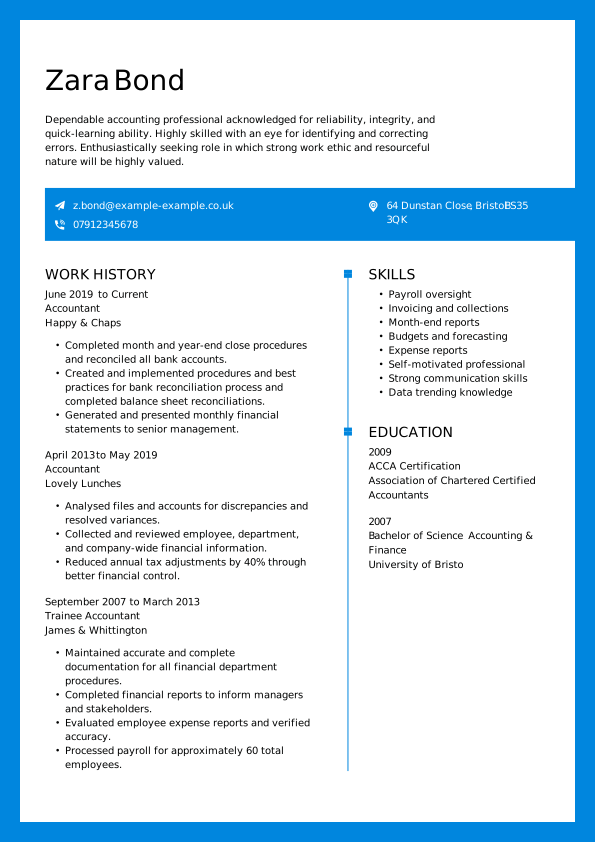
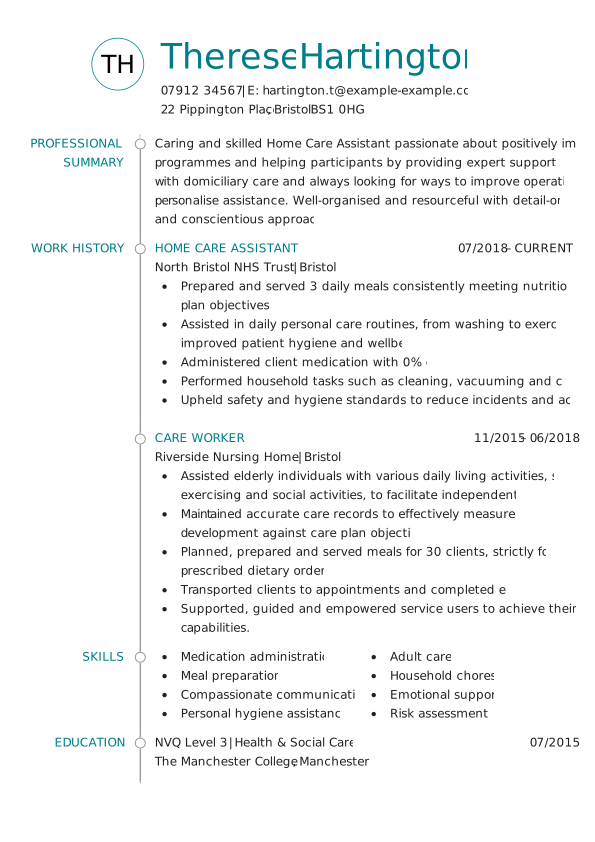
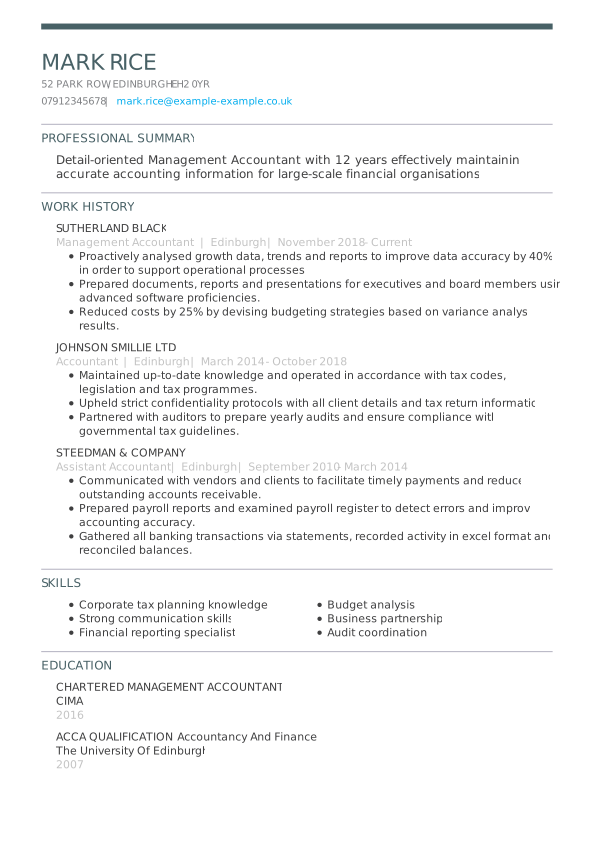
Google Docs CV template for an accountant 

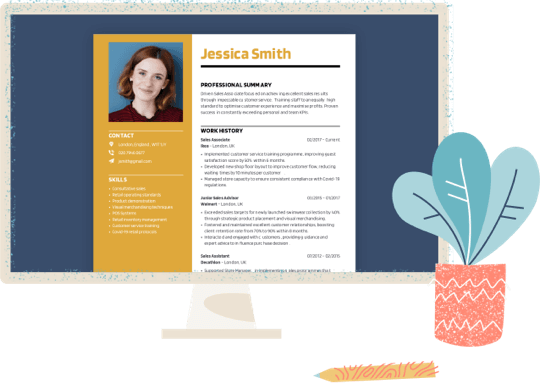
A good CV example for anyone with lots of experience. Despite graduating in 2007, the CV only includes the previous three roles to keep things concise and highlight the most relevant work history.


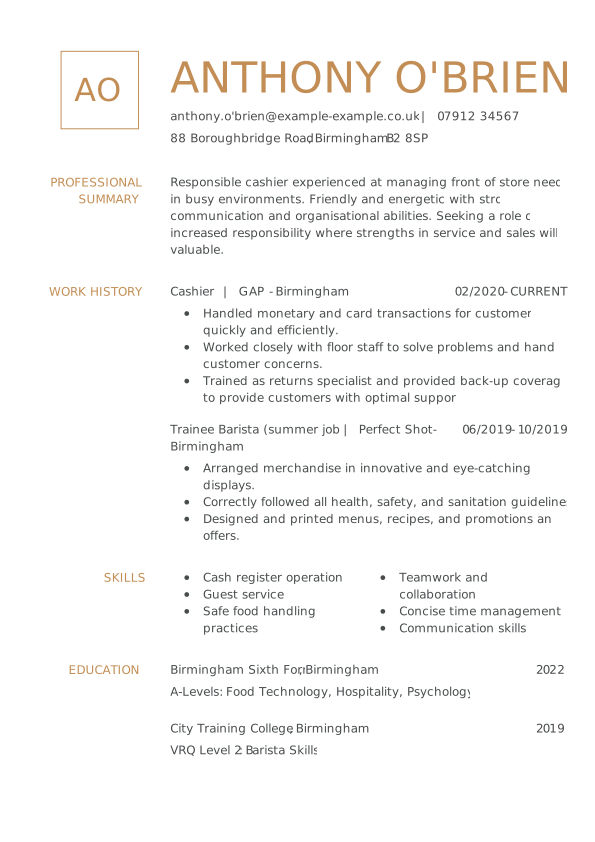
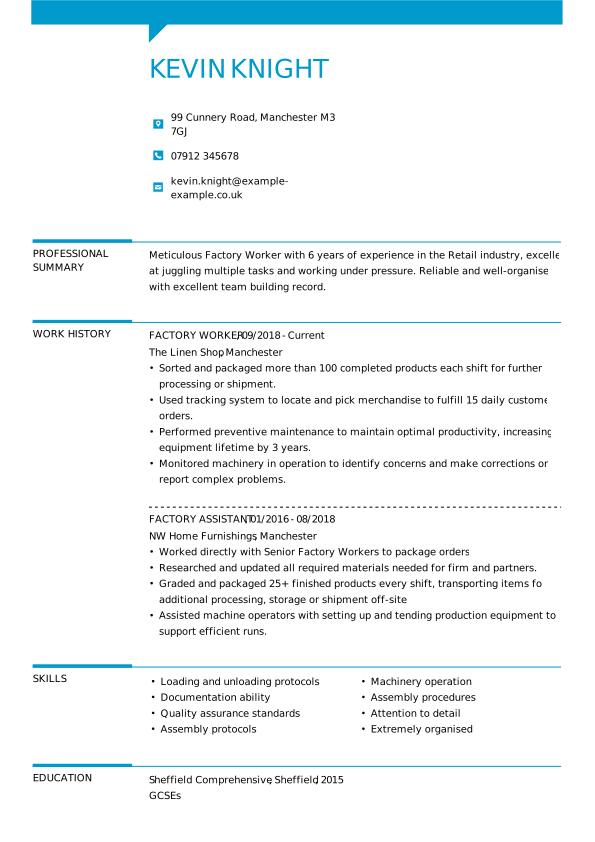
Google Docs CV template for a factory worker

They say “less is more”. Despite having only two previous roles, the CV stays relevant and on point, using negative (empty) space to keep things looking tidy. The result is a CV that’s brief and focused, but certainly not lacking.


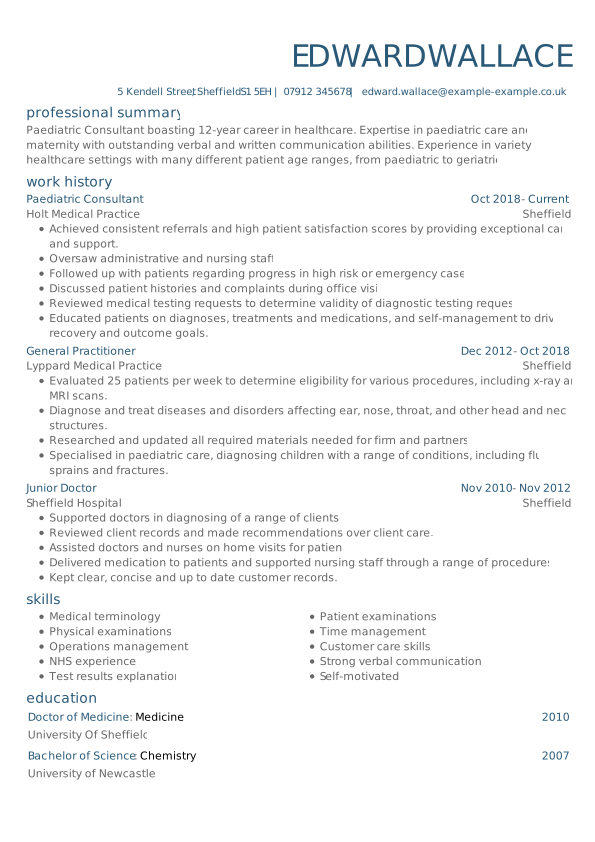
Google Docs CV template for a doctor

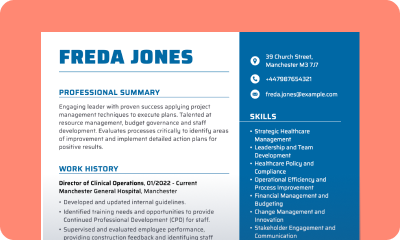
This simple but effective CV example for a doctor keeps things professional with a navy colour used for the subheadings to separate sections clearly. The clean, well-spaced layout makes tracking their journey from junior doctor to their most recent position easy for recruiters.


Browse our additional CV templates to strengthen your job application and present yourself as the ideal candidate to employers:

Modern CV templates
British CV templates
Academic CV templates
Simple CV templates
English CV templates
Student CV templates

How to create a Google Docs CV template

google docs resume template

Creating a standout CV is essential for making a strong impression on potential employers. With a clear structure, focused content, and the right format, you can ensure your CV catches attention in a competitive job market. Using a Google Docs CV template is easy. Here is a step-by-step guide to help you get started:

STEP 1

Open Google Docs: Sign in to your Google account and open Google Docs.

STEP 2

Create a new document: Click the ‘+’ icon or go to ‘File’ > ‘New’ > ‘Blank Document’ to create a new document.

STEP 3

Access templates: In the new document, go to the top menu and click ‘Template Gallery’ (located under the ‘File’ menu).

STEP 4

Select a CV template: Browse through the available templates until you find one that suits your preferences and needs. Click on the template to select it.

STEP 5

Customise your CV: Once you have selected a template, it will open as a new document in Google Docs. You can now customise the template by replacing the replacement text with your own information. Click on any text to edit it, and you can add or remove sections as required.

STEP 6

Format and style: You can also customise the formatting and style of the CV to suit your preferences. Use the toolbar at the top of the document to change fonts, colours, and sizes.

STEP 7

Save your CV: When you have finished customising your CV, remember to save the document. Click “File” > “Save” or use the keyboard shortcut Ctrl + S (Cmd + S on Mac) to save your changes.

STEP 8

Download or share: When you are happy with your CV, you can download it as a PDF or Word document by clicking “File” > “Download” and selecting your preferred file format. You can also share the document directly from Google Docs by clicking the “Share” button in the top right corner.

How to use a Google Doc CV template: writing tips 

To make the most of your CV in Google Docs, use clear formatting that helps both recruiters and applicant tracking systems scan your document quickly. Here are some key tips to follow:

  • Use ‘Heading 1’ for section titles: This keeps your CV organised and helps hiring managers navigate your content easily.
  • Keep fonts clean and readable: Stick to simple fonts like Arial, Calibri or Verdana to maintain a professional look.
  • Avoid dense text blocks: Break up your CV into smaller sections and use bullet points in areas like work history and skills.
  • Align dates and job titles consistently: Use the same layout throughout to make your experience easier to scan.
  • Use bold text for key details: Highlight job titles, company names, and achievements so they stand out at a glance.
  • Keep spacing and margins consistent: This gives your CV a clean, balanced layout that looks great on any device.

Google Docs CV template advantages

When creating your CV, the tool you choose can significantly affect how well your CV is received by employers, especially in today’s competitive job market. Google Docs can offer unique advantages as a CV template; here are just a few of them: 

Advantages:

  • Free & accessible: Google Docs is entirely free and cloud-based, making it accessible from any device with internet access.
  • Simplicity & ease of use: The clean, user-friendly interface allows for quick and easy CV creation, which is ideal for those looking for a simple, professional design.
  • ATS compatibility: Google Docs is compatible with Applicant Tracking Systems (ATS). Since ATS software scans CVs for keywords and standard formatting, Google Docs offers a clean, simple format that is more likely to pass ATS checks than highly designed CVs from tools like Canva.
  • Cloud-based: Your CV is automatically saved to Google Drive, so you never have to worry about losing your work and can access it from any device.

Disadvantages:

  • Limited design options: While Google Docs offers basic formatting, it lacks design versatility and customisation features. 
  • Less visual appeal: The templates are functional but are more basic than other visually striking designs.

Google Doc CV format: Do’s and Don’ts 

<strong>DO:</strong>
Do review CV examples for inspiration

Take the time to examine a variety of successful CV examples. This can give you a clear idea of how to structure your CV, the type of language to use, and the essential sections you need to include. Understanding what works in the industry you’re applying to will help you tailor your CV effectively.

Do tailor your CV to the job requirements

Always align your CV with the specific job requirements you’re applying for. Tailoring your CV shows that you’ve read the job description and are committed to offering the skills and experience the company needs. Use relevant keywords and focus on the most applicable experience.

Do keep your CV concise 

Make sure your CV is clear and to the point. Avoid unnecessary details or lengthy paragraphs that can overwhelm the reader. Stick to key achievements and skills that directly relate to the role you’re applying for. Ideally, keep your CV to one or two pages maximum.

<strong>DON’T</strong>
Don’t use complex designs

Your CV should be clean, simple, and professional. Avoid using overly decorative fonts or complex designs that could distract from the content. Stick to tried and tested fonts like Arial, Calibri, or Times New Roman in a standard size (10–12 pt). A simple, well-organised CV will always have more impact.

Don’t include irrelevant information

Leave out unnecessary personal details such as your age, marital status, or nationality. These details are irrelevant to your professional qualifications and could even raise privacy concerns. Additionally, in the UK, including a headshot or photo on your CV is unnecessary, as recruiters typically focus on your experience and skills.

Don’t skip the cover letter

Even if a cover letter is not explicitly requested, including one is always a good idea. A good cover letter gives you another opportunity to introduce yourself, highlight why you’re an excellent fit for the role, and convey your enthusiasm for the company. It can set you apart from candidates who don’t take the extra step.

What makes our CV builder your top option?

Easy-to-use

Our CV builder is designed to make the process of creating a detailed CV as straightforward as possible. With a focus on simplicity, the tool allows you to easily craft a standout CV – no technical expertise is required. The user-friendly interface takes you step by step, ensuring your experience, skills, and achievements are presented clearly and effectively.

Simple Cv Basic Template

Fully customisable

Personalising your CV template is quick and easy. Select from a range of professional templates and tailor the design, fonts, and sections to match your style. With full control over the customisation, you can ensure your CV highlights your unique professional experience while adhering to UK standards.

Cv Format For Job

Fast and efficient

Our CV builder is designed for speed, helping you create a professional CV in no time. Instead of starting from scratch, you can use pre-built templates that streamline the process. The easy-to-use interface allows you to quickly fill in key sections so you can focus on showcasing your skills, experience, and achievements. With minimal effort, you’ll have a polished CV ready to impress employers.

How Do You Layout A Cv

Key takeaways for an effective CV with Google Docs

  • Google Docs CV templates offer a convenient, easy-to-use format that ensures your CV looks professional and well-structured without the hassle of formatting it from scratch
  • Using a clear and structured CV template helps present your qualifications effectively, ensuring they are easily readable by recruiters and ATS (Applicant Tracking Systems).
  • You should edit your Google CV template with relevant keywords and achievements that align with the specific job description to increase your chances of passing through ATS filters.
  • In a competitive job market, where recruiters often receive numerous applications, a well-organised Google Docs CV template can significantly boost your chances of standing out.

FAQs about creative CV templates

What is a Google Docs CV template?

A Google Docs CV template is a pre-designed document format that enables you to create a professional CV quickly and easily. These templates are available for free within Google Docs and are designed to help you organise your work experience, skills, and qualifications in a clean and professional way. They come in various styles, from traditional to modern, catering to different industries and preferences.

What should I include in a Google Docs CV?

A Google Docs CV template should include the following sections:

  • Personal details (name, contact information)
  • Personal statement (a brief overview of your skills, experience, and what makes you an ideal candidate)
  • Work experience (job history, responsibilities, and achievements)
  • Education (your degrees, certifications, and any other relevant academic qualifications)
  • Skills (key abilities that align with the job you’re applying for)
  • Additional sections (such as certifications, volunteer experience, languages spoken, or portfolio links)

Can I customise a Google Docs CV template?

Yes, you can fully customise Google Docs CV templates to fit your personal style and the job you’re applying for. You can adjust the fonts, colours, sections, and layout. 

While customisation helps your CV stand out, remember to keep the design professional and easy to read. The goal is to highlight your qualifications effectively while maintaining clarity and a structured layout.

How do I format my Google Docs CV?

When formatting your Google Docs CV, you should keep these tips in mind:

  • Use a simple, readable font like Arial or Calibri.
  • Ensure your sections are marked with bold headings and bullet points for easy scanning.
  • Maintain sufficient white space to give the document a clean and uncluttered look.
  • Avoid using excessive colours or complicated graphics, as these can distract from the content.

What is an ATS, and why does it matter for my Google Docs CV?

ATS (Applicant Tracking System) is software used by many employers to filter and rank CVs. Using a simple format in Google Docs, without excessive graphics or complex layouts, ensures your CV is more likely to pass through an ATS and be read by a recruiter.

Are there Google Docs CV templates for different industries?

Yes, Google Docs offers a variety of CV templates tailored to different industries. You can find templates designed for creative fields, corporate positions, academic roles, and more, all with professional layouts suitable for your career stage.

Can I use the same Google Docs CV template for all job applications?

While you can use the same CV template for various applications, it’s best to tailor the CV content for each job you apply to. Customise your CV to highlight the skills, experiences, and qualifications most relevant to the job description. A targeted CV shows that you’ve put effort into your application and helps you stand out to employers.

Can I download my Google Docs CV as a PDF?

Yes, Google Docs lets you download your CV template in various formats, including PDF. A PDF version preserves your formatting, ensuring it looks professional when sent to employers or recruiters.

Stand out in the job market with our CV templates

A good CV format is the ideal starting point for your job search, providing a professional and organised layout for any role or industry. At myPerfectCV, you’ll find many templates designed to showcase your skills and work experience. Simply choose a template, customise it with your details, and refine it to your preferences. Once you’re ready, download your CV in just a few clicks.

Build Cv Image
Need help?